Start with the property facts.Build the launch from there.
A listing launch depends on details that need to stay consistent across the record, the brief and the finished material. Give each piece of work a reliable source.
Explore the practical guideKeep the source behind each launch task.
A seller supplies new photos and corrects a property detail during preparation. Update the source record first, then revisit the brief and any layouts that use that information.
Property record
Source to use
Listing details, photos and the people connected to it.
What to check
Keep the record current before preparing a new brief.
Listing brief
Source to use
The property facts and the outcome you need.
What to check
Check the draft against the source details before using it.
Marketing layout
Source to use
The listing’s photos and information.
What to check
Choose the appropriate Listing Photos layout and export format.
Public presence
Source to use
The listings selected for your published public page.
What to check
Check which properties and inquiry paths visitors can see.
The workspace behind the workflow.
Moving from a property record to usable listing material.

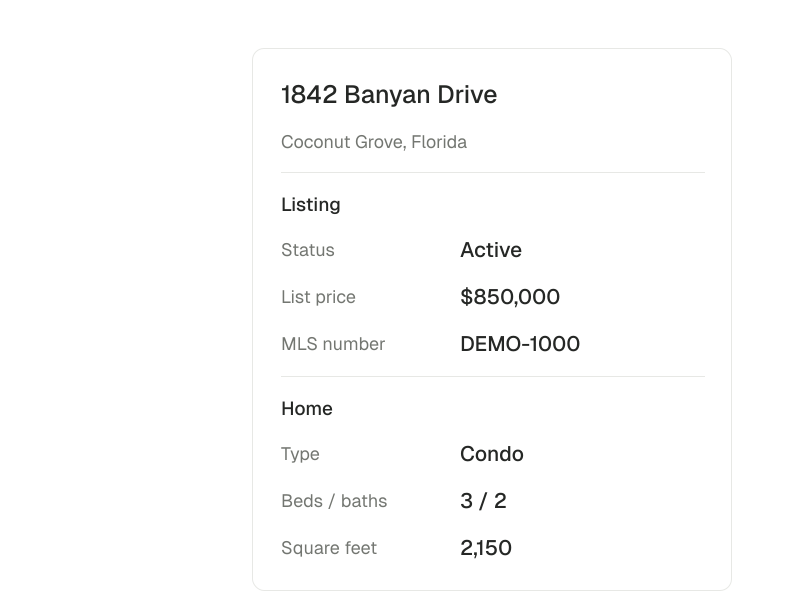
One record behind the launch.
Keep the property details connected to the people and work involved.
Explore listings
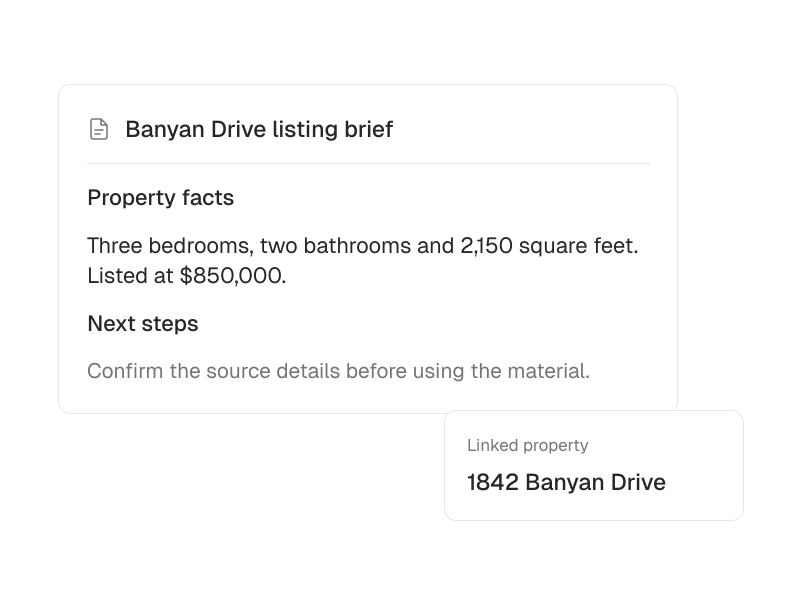
Write with the facts close by.
Prepare a listing brief or draft, then keep the saved document linked to its source context.
Explore Documents
Prepare the source before the assets.
Choose the right tool for the material.
Listing Photos provides marketing layouts. Generative staging, walkthrough generation and image processing have separate setup requirements. Choose those apps for a specific job and check their availability before planning the launch around them.
- Complete one listing record and gather the photos you are authorized to use.
- Add Listing Photos from the workspace App Store for listing graphics.
- Select the listings and contact paths you want on your public page.
Choose another perspective.
Real-estate teams
Connect shared responsibility with the people doing the work.
Explore real-estate teams